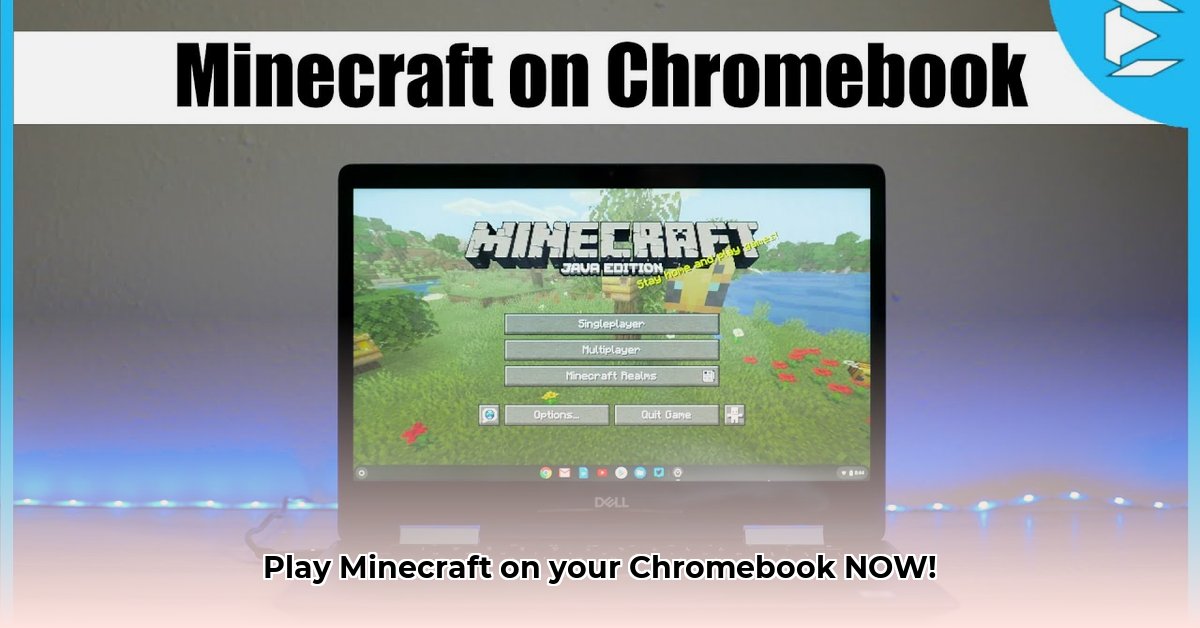
Want to play Minecraft on your Chromebook? Fantastic! But there's a key decision to make: Bedrock Edition or Java Edition. Both offer the Minecraft experience you crave, but their installation and performance on Chrome OS differ significantly. This guide will walk you through downloading and installing both, highlighting the pros and cons of each.
Minecraft Bedrock Edition: The Simple Approach
Minecraft Bedrock Edition is officially supported on Chromebooks, making it the easiest and most recommended option for most users. This means seamless integration with Chrome OS, regular updates, and direct support from Mojang Studios (Minecraft's creators).
Why Choose Bedrock Edition?
- Official Support: Enjoy hassle-free updates and direct support from Mojang and Google, ensuring a stable and optimized gaming experience. This is a huge advantage compared to Java Edition's less supported status.
- Cross-Platform Play: Play with friends on various devices, including Windows PCs, Macs, iOS, Android, Xbox, PlayStation, and Nintendo Switch. Seamlessly join multiplayer servers and share your Minecraft world with friends across platforms. This expansive cross-platform support is rarely seen with Java Edition.
- Marketplace Access: Explore the in-game Marketplace for skins, maps, and texture packs. Expand your gameplay with community-created content. Do you like to change your gaming experience regularly? This is a huge benefit.
- Easier Installation: Simple download and installation directly through the Google Play Store – no complex terminal commands or Linux setup required.
Potential Downsides of Bedrock Edition:
- Performance Limits: While generally well-optimized, performance can still be affected by your Chromebook's specifications. Older or less powerful Chromebooks might experience occasional lag or slowdowns, especially in complex environments. Is your Chromebook on the older side? Be aware that high-end graphics might cause issues.
- Limited Customization: While the Marketplace offers customization, Bedrock Edition lacks the extensive modding capabilities of Java Edition. If you crave deep customization, Java Edition might be a better fit, even with its challenges.
How to Download and Install Minecraft Bedrock Edition:
- Open the Google Play Store: Locate and open the Google Play Store app on your Chromebook.
- Search for Minecraft: Type "Minecraft" into the search bar and press Enter.
- Select the Official Game: Choose "Minecraft" by Mojang Studios.
- Install the Game: Click the "Install" button. The game will download and install automatically.
- Launch Minecraft: Once installed, locate the Minecraft icon and start playing!
Troubleshooting Tip: If performance is sluggish, lower the in-game graphics settings to improve the frame rate.
Minecraft Java Edition: The Technically Demanding Path
Minecraft Java Edition isn't officially supported on Chromebooks and requires using the Linux (Beta) feature. This is a more advanced process, but it unlocks the extensive modding community and provides a potentially more customizable gaming experience for advanced players. Did you know that Java Edition offers a much greater level of control and modding compared to Bedrock?
Why Choose Java Edition?
- Unlimited Modding: Access a vast community-created mod library, vastly expanding the game's features and gameplay. This unparalleled level of customization is Java Edition's primary draw.
- Advanced Features: Sometimes includes features not directly available in Bedrock Edition due to its open nature. Do you want complete control over your game? This is the better option.
- Dedicated Community: A large and helpful online community offers support and resources. For experienced players, navigating this community and finding support is a big benefit.
Challenges of Java Edition on Chromebooks:
- Complex Installation: Requires enabling and configuring the Linux (Beta) environment on your Chromebook, installing the Java Development Kit (JDK), and potentially troubleshooting various dependencies. This is not for the casual user.
- Performance Variability: Performance is heavily reliant on your Chromebook's hardware. Older or weaker Chromebooks might struggle to run Java Edition smoothly. Is your Chromebook older? Consider Bedrock Edition instead.
- Lack of Official Support: If you encounter issues, troubleshooting will rely on community resources and online forums rather than official support channels.
Installing Minecraft Java Edition on Chromebook:
- Enable Linux (Beta): Navigate to your Chromebook's Settings and find the "Linux (Beta)" or similar setting. Follow the prompts to install the Linux environment. This might require a system restart.
- Install the Java Development Kit (JDK): Once Linux is enabled, use the terminal to install the OpenJDK. The specific commands will depend on your Linux distributions; online resources are an essential guide.
- Download the Minecraft Java Edition Installer: Download the installer from the official Mojang website. Choose the version compatible with your Linux environment (typically 64-bit).
- Run the Installer: Use the Linux terminal to run the installer. Specific commands (often
dpkg -icommands) will depend on the installer file type (.deb).
Performance Optimization: Close unnecessary applications, adjust in-game graphics settings, and potentially allocate more RAM to the Linux container in your Chromebook settings to maximize performance.
Comparison Table:
| Feature | Bedrock Edition | Java Edition |
|---|---|---|
| Official Support | Yes | No |
| Installation | Easy, via Google Play Store | Complex, requires Linux (Beta) and manual steps |
| Cross-Platform Play | Yes | Partially (depends on servers) |
| Mods and Add-ons | Limited (Marketplace) | Extensive (modding community) |
| Performance | Generally better on lower-end Chromebooks | More dependent on Chromebook specifications |
Ultimately, the best choice depends on your technical skills and Chromebook's capabilities. Bedrock Edition offers a simpler, more accessible route, while Java Edition opens the door to extensive customization at the cost of increased complexity. Choose wisely, and happy building!
⭐⭐⭐⭐☆ (4.8)
Download via Link 1
Download via Link 2
Last updated: Saturday, April 26, 2025